Blog
The Blog module allows you to manage blog posts, categories, and comments for your platform. Blog content helps engage users, provide news, and improve SEO.
Accessing the Blog
- Log in to the admin panel at
https://your-domain/admin - Click Blog in the sidebar under "Prediction Areas"
- You will land on the Blog hub page
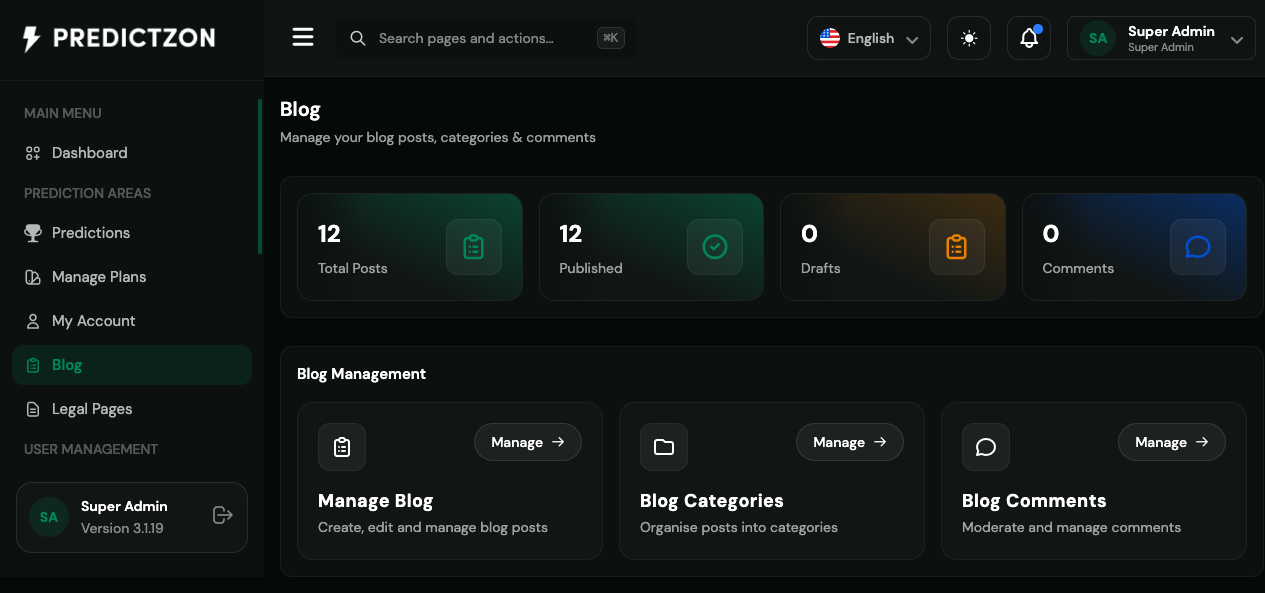
Blog Overview
The Blog hub displays summary statistics and management modules:
Summary Statistics
| Metric | Description |
|---|---|
| Total Posts | All blog posts in the system |
| Published | Posts visible to users |
| Drafts | Posts in progress |
| Comments | User comments on blog posts |
Management Modules
| Module | Description |
|---|---|
| Manage Blog | Create, edit, and manage blog posts |
| Blog Categories | Organize posts into categories |
| Blog Comments | Moderate and manage user comments |
Managing Blog Posts
Navigate to Blog → Manage Blog to access the blog posts list.
Creating a Blog Post
- Click the Create Post button
- Fill in the post details:
- Title — Post title (required)
- Slug — URL-friendly identifier (auto-generated from title)
- Content — Full post content with rich text editing
- Excerpt — Short summary for listings
- Featured Image — Cover image for the post
- Category — Select a category for the post
- Status — Published or Draft
- SEO Title — Custom title for search engines
- SEO Description — Custom description for search engines
- Click Save to create the post
Editing a Blog Post
- Click the Edit button on the post row
- Modify the content as needed
- Click Save to update
Deleting a Blog Post
- Click the Delete button on the post row
- Confirm the deletion
Warning: Deleted posts cannot be recovered.
Managing Blog Categories
Navigate to Blog → Blog Categories to organize your content.
Creating a Category
- Click the Create Category button
- Enter the category details:
- Name — Category display name
- Slug — URL-friendly identifier
- Description — Optional category description
- Click Save
Editing a Category
- Click the Edit button on the category row
- Modify the details
- Click Save
Deleting a Category
- Click the Delete button
- Confirm the deletion
Note: Posts in a deleted category will become uncategorized.
Managing Blog Comments
Navigate to Blog → Blog Comments to moderate user feedback.
Comment Moderation
- View all comments across all blog posts
- Approve or reject pending comments
- Delete inappropriate comments
- Reply to comments (if enabled)
Comment Status
| Status | Description |
|---|---|
| Pending | Awaiting moderation |
| Approved | Visible to users |
| Rejected | Hidden from users |
Blog Workflow
The typical workflow for managing blog content:
- Create categories — Set up content organization first
- Write posts — Create content in Draft status
- Review and edit — Polish content before publishing
- Publish — Change status to Published when ready
- Monitor comments — Check for new comments regularly
- Moderate — Approve or reject user comments
Best Practices
- Create categories first — Organize content before publishing
- Use featured images — Visual content increases engagement
- Write compelling titles — Titles should be clear and engaging
- Add excerpts — Short summaries improve click-through rates
- Moderate regularly — Check comments daily to maintain quality
- Optimize for SEO — Use SEO fields for better search visibility
Related Pages
- Legal Pages — Manage privacy policy and terms of service
- Theme Management — Customize how blog content appears on frontend
- Notification Settings — Configure email notifications for new comments