Theme Management
The Theme Management module allows you to activate, configure, and customize the appearance of your platform's frontend. Themes control how your website looks and feels to users.
Accessing Theme Management
- Log in to the admin panel at
https://your-domain/admin - Click Theme Management in the sidebar under "System Settings"
- You will land on the Theme Management page
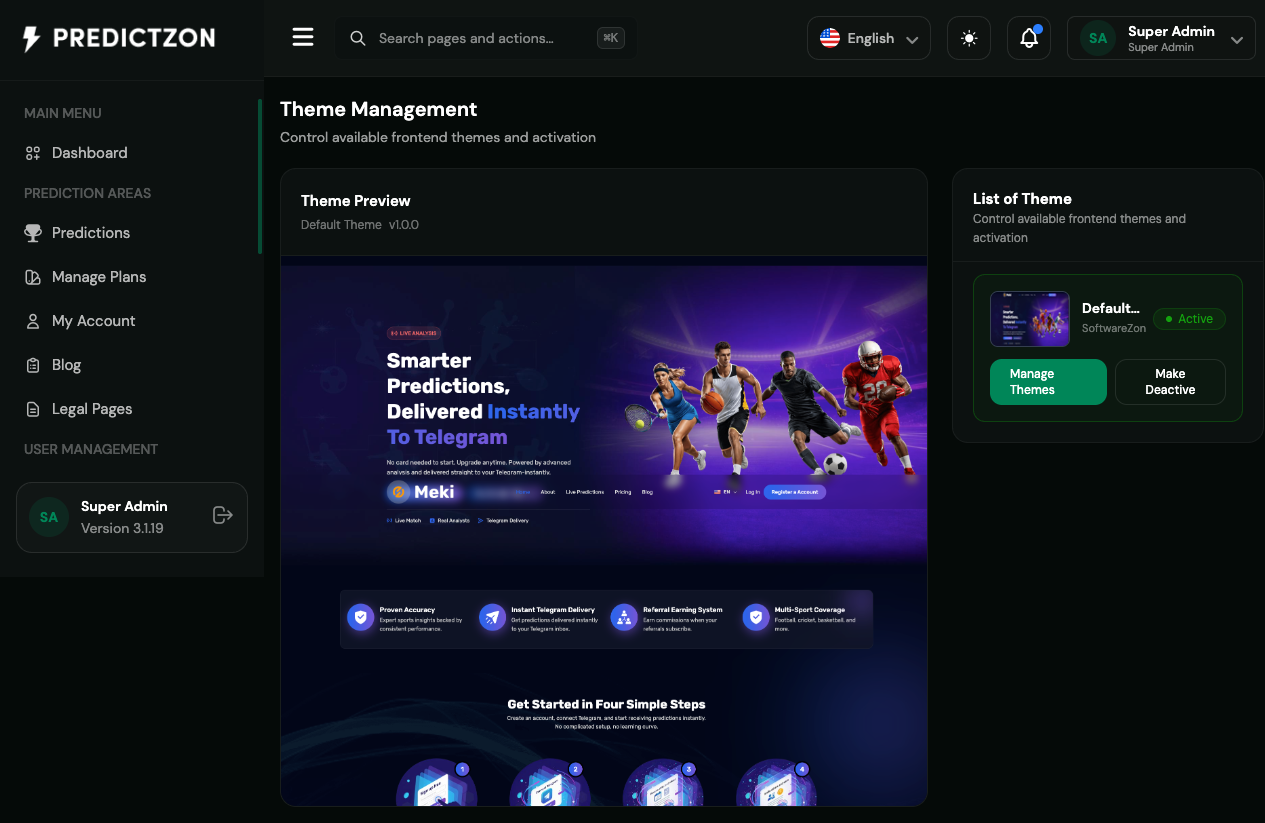
Theme Management Overview
The Theme Management page displays all available themes with their status and management options.
Theme Status
| Status | Description |
|---|---|
| Active | Currently live on frontend |
| Inactive | Available but not active |
Theme Actions
| Action | Description |
|---|---|
| Activate | Set theme as active |
| Manage | Configure theme sections and settings |
| Sync | Synchronize theme with latest version |
| Delete | Remove theme from system |
Activating a Theme
- Click the Activate button on the theme row
- Confirm the activation
- Theme becomes live on frontend immediately
Note: Only one theme can be active at a time.
Managing a Theme
Click the Manage button to access theme configuration.
Theme Sections
The theme is divided into customizable sections:
| Section | Description |
|---|---|
| Header | Site header with navigation and logo |
| Hero | Main banner/hero section |
| Features | Feature highlights section |
| Pricing | Subscription plans display |
| Testimonials | User testimonials section |
| Footer | Site footer with links and info |
Editing a Section
- Navigate to the section you want to edit
- Click Edit to modify content
- Update text, images, or settings
- Click Save to apply changes
Section Visibility
Toggle section visibility:
- Visible — Section appears on frontend
- Hidden — Section is hidden from frontend
Section Reordering
Drag and drop sections to reorder them on the page.
Resetting Content
Reset a section to its default content:
- Click Reset Content
- Confirm the reset
- Section reverts to default
Resetting Elements
Reset all elements in a section:
- Click Reset Elements
- Confirm the reset
- All elements revert to defaults
Theme Settings
Navigate to Theme → Settings for advanced configuration.
General Settings
| Setting | Description |
|---|---|
| Site Title | Override site title |
| Site Description | Override site description |
| Favicon | Custom favicon for this theme |
Social Links
Configure social media links:
- Facebook URL
- Twitter URL
- Instagram URL
- LinkedIn URL
- YouTube URL
- Telegram URL
Chat Widgets
Enable live chat integration:
- Tawk.to — Free live chat
- Intercom — Customer messaging
- Custom Widget — Embed your own chat code
GDPR Settings
Configure privacy and cookie consent:
- Cookie Consent — Enable cookie banner
- Privacy Policy URL — Link to privacy policy
- Terms URL — Link to terms of service
Error Pages
Customize error pages:
- 404 Page — Not found page content
- 500 Server Error — Server error page content
Custom Code
Add custom code to your theme:
- Custom CSS — Additional stylesheet
- Custom JavaScript — Additional scripts
- Header Code — Code in
<head>section - Footer Code — Code before
</body>
Theme Translations
Navigate to Theme → Translations to manage theme-specific translations.
Translation Features
| Feature | Description |
|---|---|
| Manual Translation | Enter translations key by key |
| Upload Translation | Import translation file |
| Download Translation | Export translation file |
| Auto-Translate | Use AI to translate missing keys |
Theme Menus
Navigate to Theme → Menus to manage navigation menus.
Managing Menus
| Action | Description |
|---|---|
| Create Menu | Add a new navigation menu |
| Edit Menu | Modify menu items |
| Delete Menu | Remove a menu |
| Reorder | Drag to reorder menu items |
| Reset | Reset menu to default |
Menu Positions
| Position | Description |
|---|---|
| Header | Top navigation bar |
| Footer | Bottom navigation area |
| Sidebar | Side navigation panel |
Best Practices
- Test before activating — Preview theme changes before going live
- Backup current theme — Export settings before major changes
- Use sections wisely — Organize content logically
- Optimize images — Compress images for faster loading
- Mobile responsive — Verify theme works on all devices
- Keep translations updated — Maintain all language versions
Related Pages
- General Settings — Configure site-wide appearance
- Manage Language — Add languages for theme translation
- Notification Settings — Customize notification appearance