Manage Translations
The Manage Translations module allows you to edit, upload, download, and auto-translate all platform text strings. This is where you localize the entire admin panel and frontend for different languages.
Accessing Manage Translations
- Log in to the admin panel at
https://your-domain/admin - Click Manage Language in the sidebar under "System Settings"
- Click the Add Translation button (or navigate to
/admin/translations) - You will land on the Manage Translations page
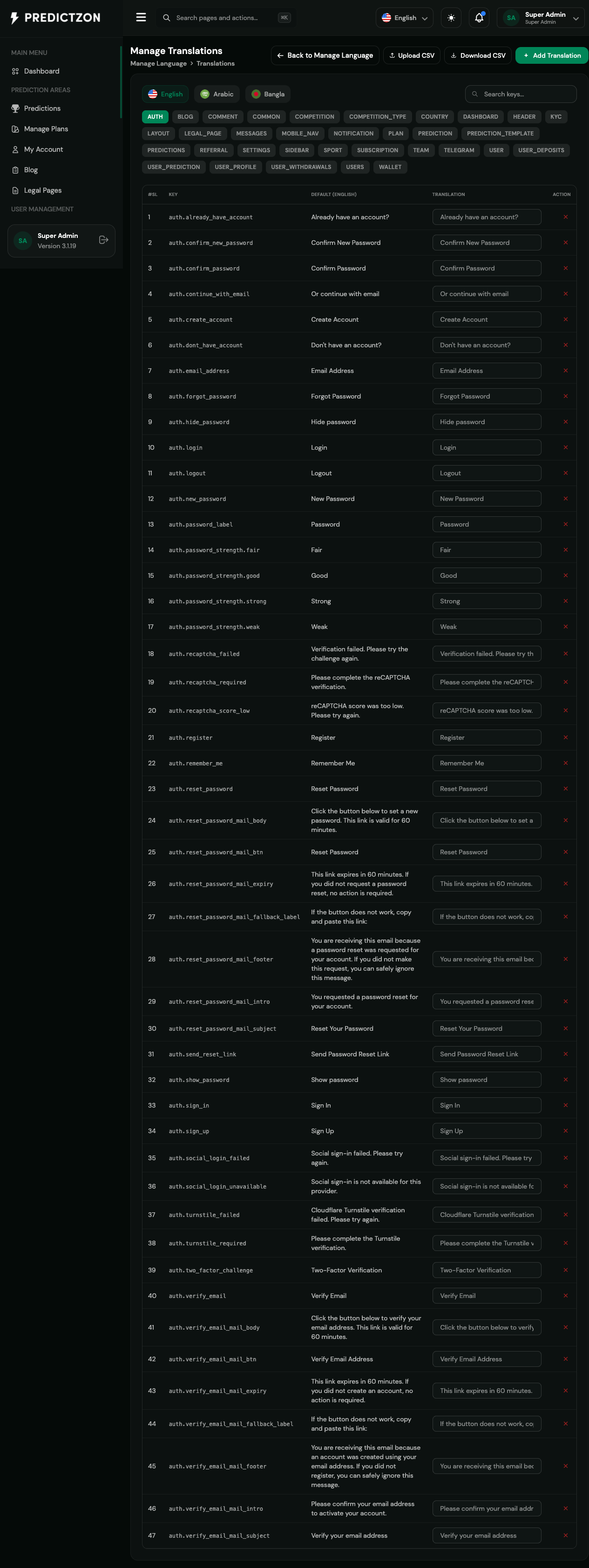
Translations Overview
The Translations page provides a comprehensive interface for managing all platform text.
Language Tabs
Switch between languages using the tabs at the top:
- English — Default language translations
- Arabic — Arabic language translations
- Bangla — Bangla language translations
Click a tab to view and edit translations for that language.
Translation Groups
Translation keys are organized into groups:
| Group | Description |
|---|---|
| auth | Authentication-related strings (login, register, password reset) |
| blog | Blog module strings |
| comment | Comment-related strings |
| common | Shared/common strings |
| competition | Competition management strings |
| competition_type | Competition type strings |
| country | Country-related strings |
| dashboard | Dashboard strings |
| header | Header/navigation strings |
| kyc | KYC verification strings |
| layout | Layout/template strings |
| legal_page | Legal page strings |
| messages | System messages |
| mobile_nav | Mobile navigation strings |
| notification | Notification-related strings |
| plan | Subscription plan strings |
| prediction | Prediction management strings |
| prediction_template | Prediction template strings |
| predictions | Predictions list strings |
| referral | Referral system strings |
| settings | Settings page strings |
| sidebar | Sidebar navigation strings |
| sport | Sport-related strings |
| subscription | Subscription strings |
| team | Team management strings |
| telegram | Telegram integration strings |
| user | User management strings |
| user_deposits | User deposit strings |
| user_prediction | User prediction strings |
| user_profile | User profile strings |
| user_withdrawals | User withdrawal strings |
| users | Users list strings |
| wallet | Wallet-related strings |
Translation Table
The table displays all translation keys:
| Column | Description |
|---|---|
| #SL | Serial number |
| Key | Translation key (e.g., "auth.login") |
| Default (English) | Original English text |
| Translation | Translated text for selected language |
| Action | Save button for individual key |
Editing Translations
Inline Editing
- Click on a translation value in the table
- Type the translated text
- Click the save button (checkmark icon) for that row
- The translation is saved immediately
Bulk Editing
- Edit multiple translation values
- Click Save All to save all changes at once
Adding Translations
- Click the Add Translation button
- Enter the translation key and value
- Click Save to add the new translation
Uploading Translations
- Click the Upload CSV button
- Select a CSV file with translation data
- The translations are imported and updated
CSV Format
The CSV file should have the following format:
text
key,default,translation
auth.login,Login,התחבר
auth.register,Register,הירשם
Downloading Translations
- Click the Download CSV button
- A CSV file with all translations is downloaded
- Use this for backup or bulk editing
Auto-Translating
- Select the target language tab
- Click Auto-Translate Missing
- The system uses AI to translate missing keys
- Review and approve the translations
Translation Workflow
The typical workflow for managing translations:
- Add languages — Create new languages in Manage Language first
- Download CSV — Export existing translations
- Edit offline — Use a spreadsheet to bulk edit translations
- Upload CSV — Import the edited translations
- Review — Check auto-translated content for accuracy
- Test — Switch languages on frontend to verify
Best Practices
- Start with English — Ensure default translations are complete
- Use consistent terminology — Keep translations consistent across the platform
- Review auto-translations — AI translations may need manual correction
- Test all languages — Verify translations display correctly on frontend
- Backup regularly — Download CSV backups before major changes
- Use translation groups — Organize translations by feature/module
Related Pages
- Manage Language — Add and configure languages
- Theme Management — Translate theme-specific content
- Notification Settings — Translate notification templates