KYC Verifications
The KYC (Know Your Customer) Verifications module manages identity verification for users. This is essential for compliance with financial regulations and preventing fraud.
Accessing KYC Verifications
- Log in to the admin panel at
https://your-domain/admin - Click KYC Verifications in the sidebar under "User Management"
- You will land on the KYC Verifications hub page
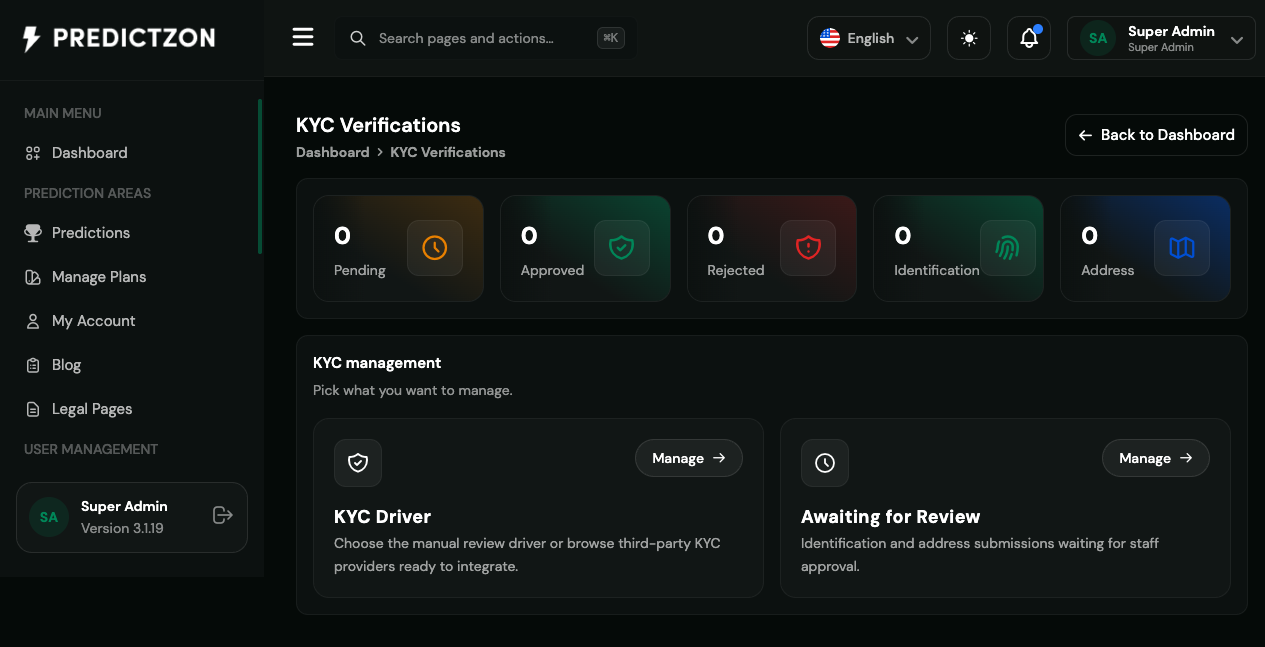
KYC Overview
The KYC hub displays summary statistics and management modules:
Summary Statistics
| Metric | Description |
|---|---|
| Pending | Verification requests awaiting review |
| Approved | Successfully verified users |
| Rejected | Failed verification attempts |
| Identification | ID document verification requests |
| Address | Address proof verification requests |
Management Modules
| Module | Description |
|---|---|
| KYC Drivers | Configure automated verification providers |
| Manual Verification | Review and process manual KYC submissions |
KYC Drivers
Navigate to KYC Verifications → KYC Drivers to configure automated verification.
Configuring a Driver
- Select a KYC driver from the list
- Configure the driver settings:
- API Key — Provider API credentials
- API Secret — Provider API secret
- Environment — Test or Production mode
- Enabled — Toggle driver on/off
- Click Save to update
Supported KYC Providers
The platform supports multiple KYC verification providers for automated identity verification. Each provider offers different verification capabilities and coverage.
Manual Verification
Navigate to KYC Verifications → Manual Verification to review submissions.
KYC Submission List
The table displays all verification requests:
| Column | Description |
|---|---|
| User | User who submitted the request |
| Type | Identification or Address verification |
| Status | Pending, Approved, or Rejected |
| Submitted | Submission timestamp |
| Actions | View, Approve, or Reject |
Reviewing a Submission
- Click on a submission to view details
- Review the uploaded documents:
- Government-issued ID (passport, driver's license, national ID)
- Proof of address (utility bill, bank statement)
- Verify the information matches
- Make a decision:
Approving a Submission
- Click Approve
- Add notes (optional)
- Confirm approval
- User receives notification of approval
Rejecting a Submission
- Click Reject
- Enter rejection reason (required)
- Confirm rejection
- User receives notification with rejection reason
KYC Types
| Type | Description | Documents Accepted |
|---|---|---|
| Identification | Verify user identity | Passport, Driver's License, National ID |
| Address | Verify user address | Utility Bill, Bank Statement, Government Letter |
KYC Status
| Status | Description |
|---|---|
| Pending | Awaiting review |
| Approved | Verification successful |
| Rejected | Verification failed |
KYC Workflow
The typical KYC verification workflow:
- User submits documents — Upload ID and/or address proof
- System validates — Basic format and quality checks
- Admin reviews — Manual review of documents
- Decision made — Approve or reject with reason
- User notified — Email notification of outcome
- Account updated — KYC status reflected in user profile
Best Practices
- Review promptly — Process KYC requests within 24-48 hours
- Be thorough — Verify all information matches user profile
- Document rejections — Always provide clear rejection reasons
- Monitor patterns — Watch for suspicious submission patterns
- Keep records — Maintain audit trail of all KYC decisions
- Use automated drivers — Enable automated verification where possible
Related Pages
- Manage Users — View user KYC status
- General Settings — Configure KYC requirements
- Notification Settings — Configure KYC notification templates