User Panel/Notifications
Notifications
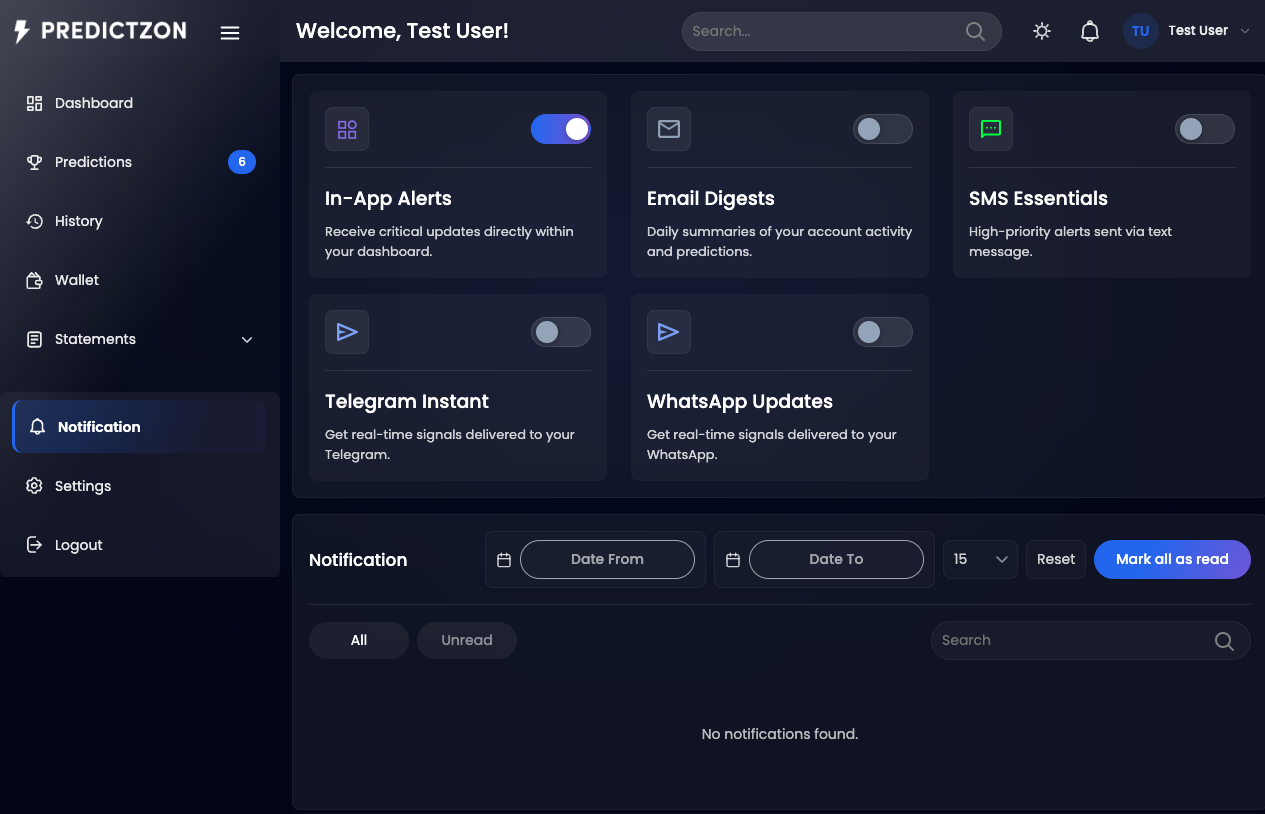
The Notifications page displays all notifications sent to your account. Stay updated on prediction results, account activity, subscription changes, and platform announcements.
Accessing Notifications
- Log in to your account
- Click Notification in the sidebar
Notification List
Notifications are displayed in a paginated list showing:
| Field | Description |
|---|
| Content | Notification message text |
| Read/Unread | Visual indicator for unread notifications |
| Date | When the notification was sent |
Filtering Notifications
| Filter | Description |
|---|
| Search | Search by notification text or description |
| Tab | Switch between All and Unread notifications |
| Date Range | Filter by date range |
Notification Actions
| Action | Description |
|---|
| Mark as Read | Click a notification to mark it as read and navigate to its link (if any) |
| Mark All as Read | Mark all unread notifications as read |
| Delete | Remove a notification from your inbox |
Notification Channels
You can manage which channels deliver notifications to you. Toggle channels on/off:
| Channel | Description |
|---|
| Email | Receive notifications via email |
| SMS | Receive notifications via SMS |
| Database | In-app notifications (always visible here) |
| WhatsApp | Receive notifications via WhatsApp |
| Telegram | Receive notifications via Telegram |
Tips
- Check notifications regularly for important account updates
- Enable multiple channels to never miss critical alerts
- Mark all as read to keep your inbox clean
- Review notification preferences in your account settings
Related Pages