Predictions
The Predictions module is the core of the PredictZon platform. It allows administrators to manage sports predictions, including teams, competitions, templates, and match details that are delivered to users via Telegram.
Overview
The Predictions section provides a comprehensive dashboard for managing all prediction-related data:
- Predictions — Individual match predictions with teams, odds, and analysis
- Templates — Reusable prediction formats for different sport types
- Teams — Database of teams across all competitions
- Competitions — Leagues, tournaments, and events
- Types — Categories for classifying competitions
- Countries — Geographic regions for teams and competitions
- Sports — Available sports for predictions
Accessing Predictions
- Log in to the admin panel at
https://your-domain/admin - Click Predictions in the sidebar under "Prediction Areas"
- You will land on the Predictions Dashboard
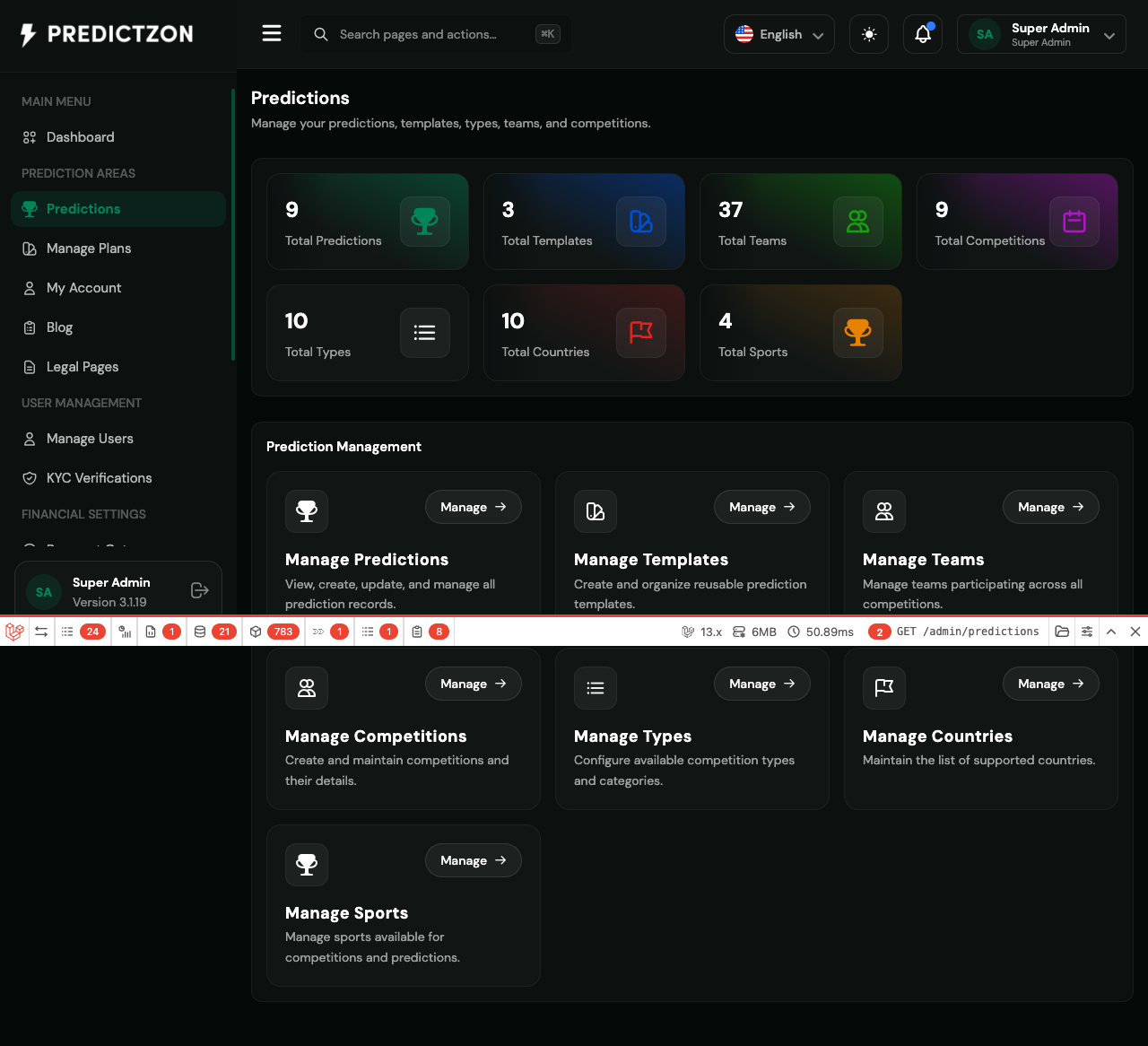
Predictions Dashboard
The dashboard displays key statistics at a glance:
| Metric | Description |
|---|---|
| Total Predictions | All predictions created in the system |
| Total Templates | Prediction templates available |
| Total Teams | Teams registered across all sports |
| Total Competitions | Active competitions and leagues |
| Total Types | Competition type categories |
| Total Countries | Countries with registered teams |
| Total Sports | Sports available for predictions |
Below the statistics, you'll find quick-access cards for each management section with a Manage button to navigate directly.
Manage Predictions
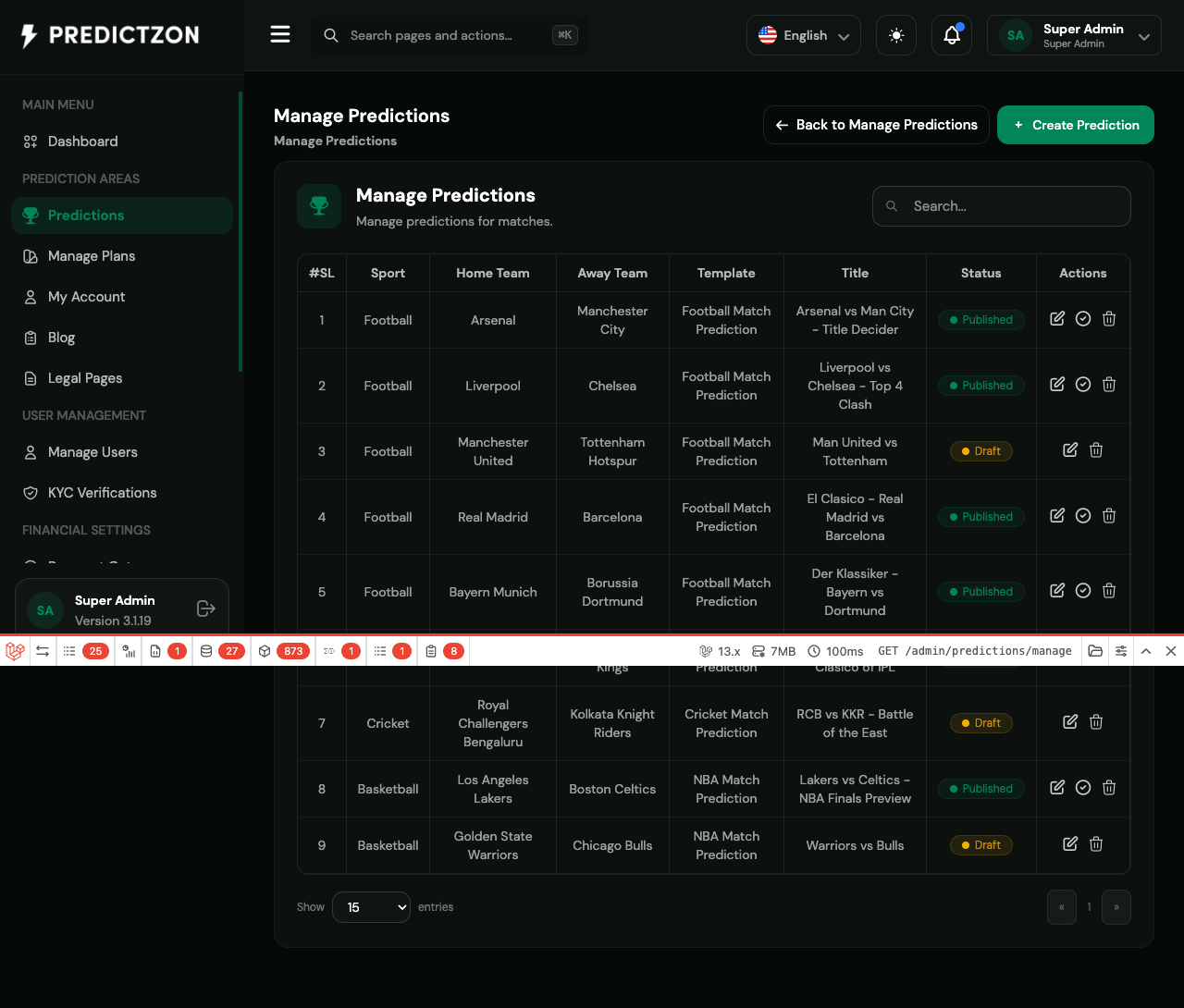
The Manage Predictions page displays all predictions in a searchable table.
Viewing Predictions
- Navigate to Predictions → Manage Predictions
- The table shows all predictions with:
- #SL — Serial number
- Sport — The sport type (Football, Cricket, Basketball, etc.)
- Home Team — The home team name
- Away Team — The away team name
- Template — The prediction template used
- Title — Match title or description
- Status — Published or Draft
- Actions — Edit, Settle, or Delete options
Filtering and Searching
- Use the Search box to filter predictions by any field
- Change the number of entries displayed using the dropdown (5, 10, 15, 25, 50)
Creating a New Prediction
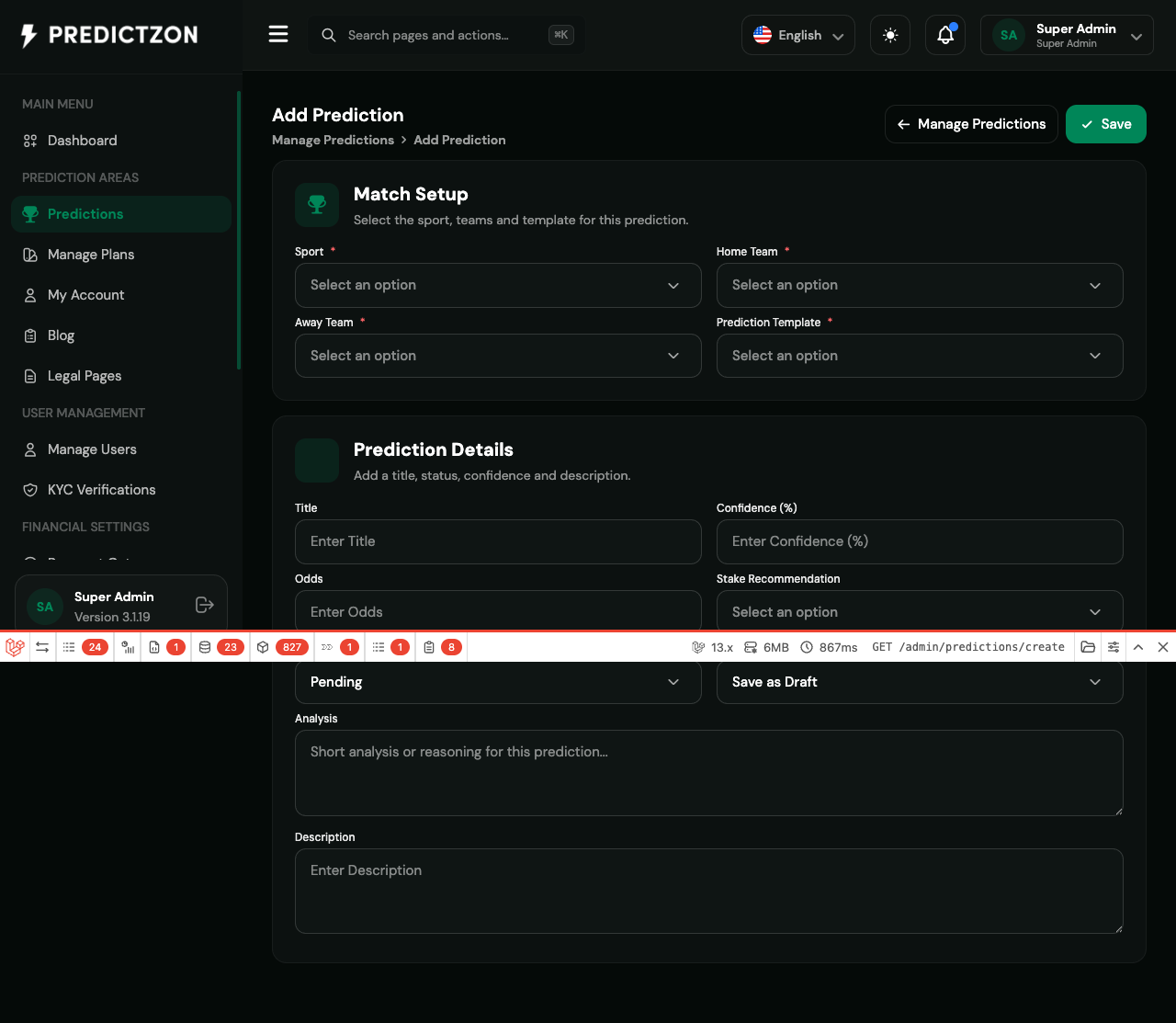
- Click the Create Prediction button in the top-right corner
- Fill in the Match Setup section:
- Sport — Select the sport type (required)
- Home Team — Select the home team (required)
- Away Team — Select the away team (required)
- Prediction Template — Choose a template for this prediction (required)
- Fill in the Prediction Details section:
- Title — Enter a descriptive title for the prediction
- Confidence (%) — Set the confidence level (0-100)
- Odds — Enter the betting odds
- Stake Recommendation — Select recommended stake level
- Result — Set the current result status (Pending, Win, Loss, etc.)
- Publish Mode — Choose "Save as Draft" or "Publish" (required)
- Analysis — Add short analysis or reasoning for this prediction
- Description — Add detailed description or notes
- Click Save to create the prediction
Editing a Prediction
- Click the Edit button (pencil icon) in the Actions column
- Modify the prediction details as needed
- Click Save to update
Settling a Prediction
When a match is completed, you can settle the prediction to record the outcome:
- Click the Settle button (checkmark icon) in the Actions column
- Select the result outcome
- Confirm the settlement
Deleting a Prediction
- Click the Delete button (trash icon) in the Actions column
- Confirm the deletion when prompted
Warning: Deleted predictions cannot be recovered.
Manage Templates
Templates define the structure and fields used for different types of predictions.
Viewing Templates
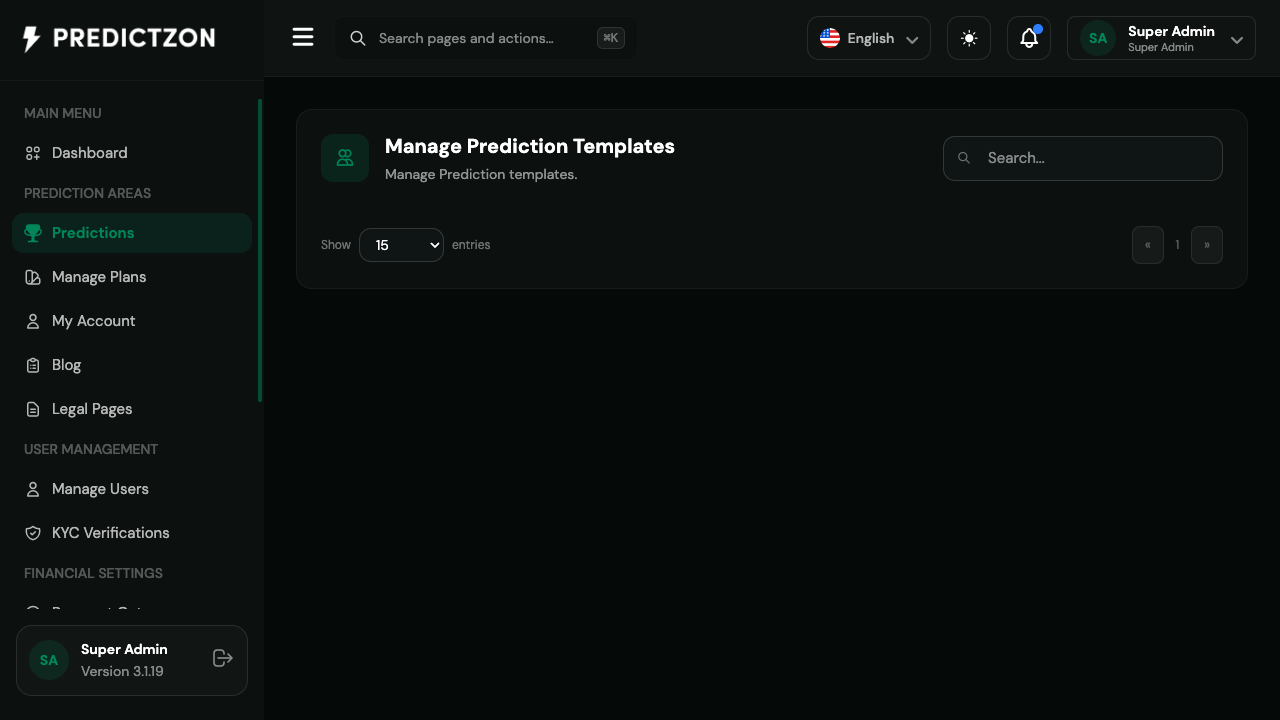
- Navigate to Predictions → Manage Templates
- The table displays all available templates with their details
Creating a Template
- Click the Create Template button
- Define the template structure:
- Template name and description
- Field definitions and layout
- Default values for prediction fields
- Save the template
Templates help maintain consistency across predictions and speed up the creation process.
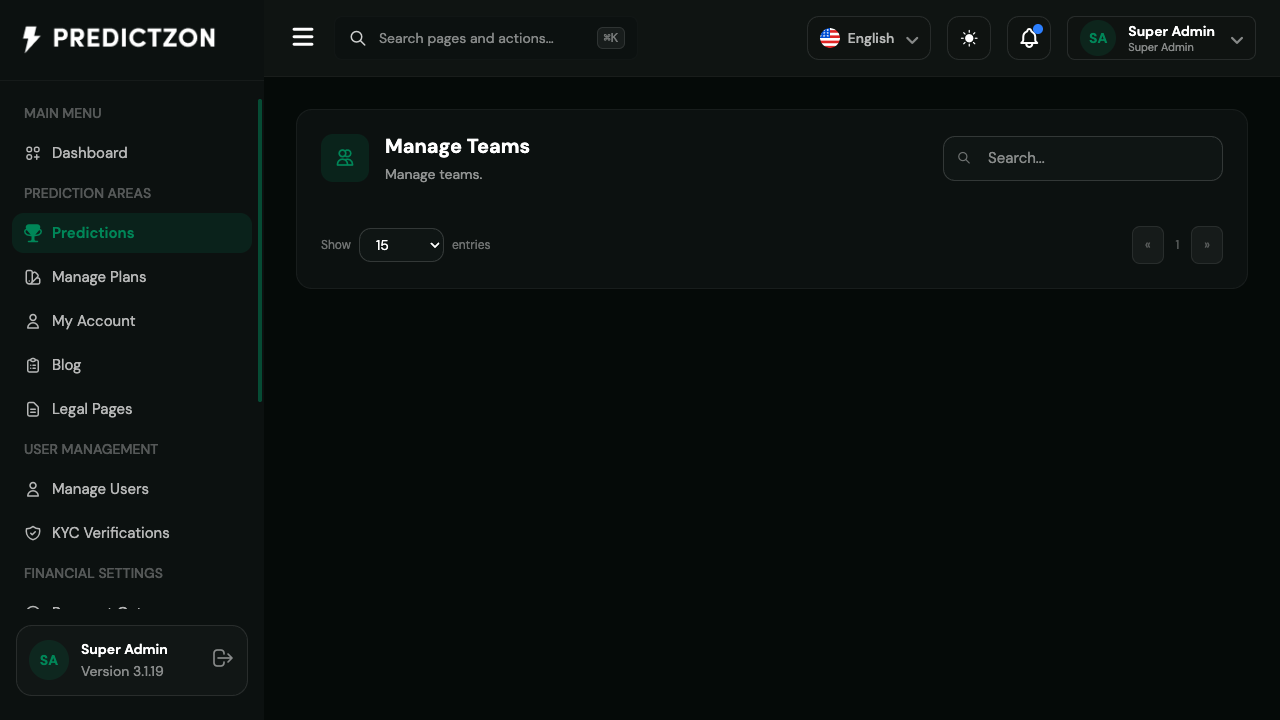
Manage Teams
The Teams section maintains a database of all teams participating in competitions.
Viewing Teams
- Navigate to Predictions → Manage Teams
- The table displays all registered teams
Adding a Team
- Click the Create Team button
- Enter the team details:
- Team name
- Sport association
- Country/region
- Any additional metadata
- Save the team
Editing or Deleting Teams
- Click the Edit button to modify team details
- Click the Delete button to remove a team
Note: Teams that are currently used in active predictions cannot be deleted.
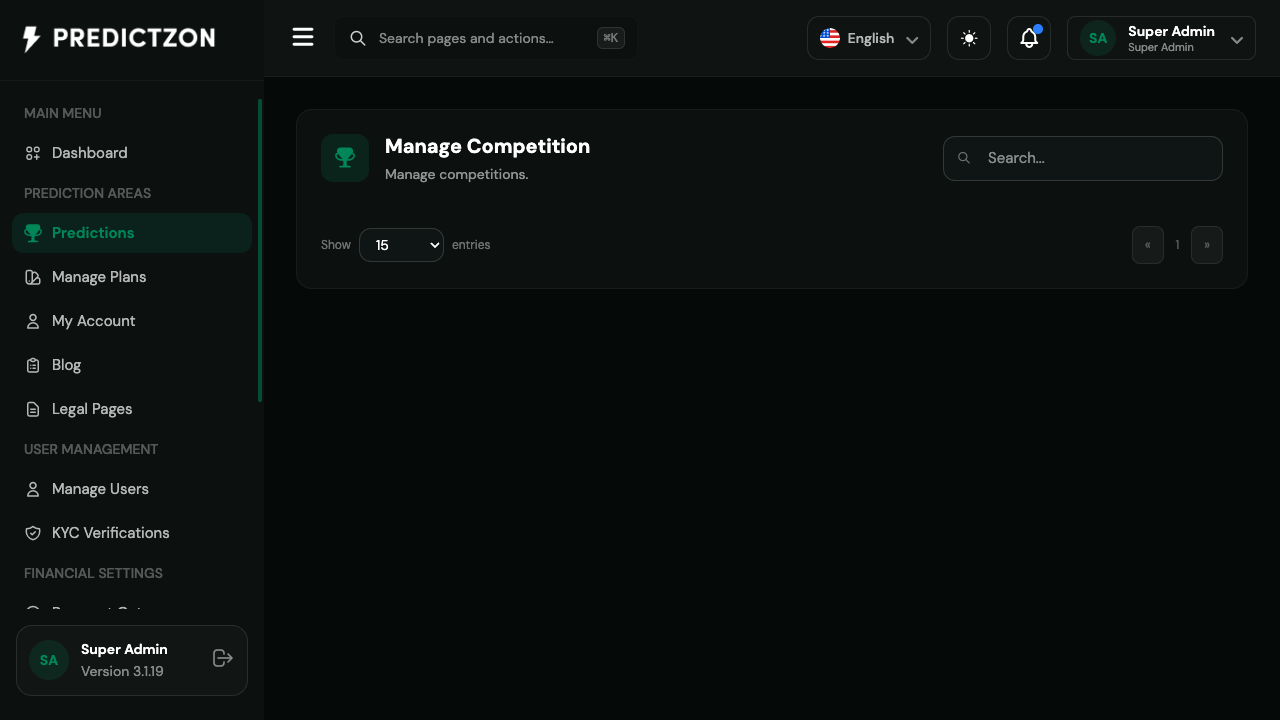
Manage Competitions
Competitions represent leagues, tournaments, or events where teams compete.
Viewing Competitions
- Navigate to Predictions → Manage Competitions
- The table displays all competitions
Creating a Competition
- Click the Create Competition button
- Fill in the competition details:
- Competition name
- Associated sport
- Country/region
- Competition type
- Status (Active/Inactive)
- Save the competition
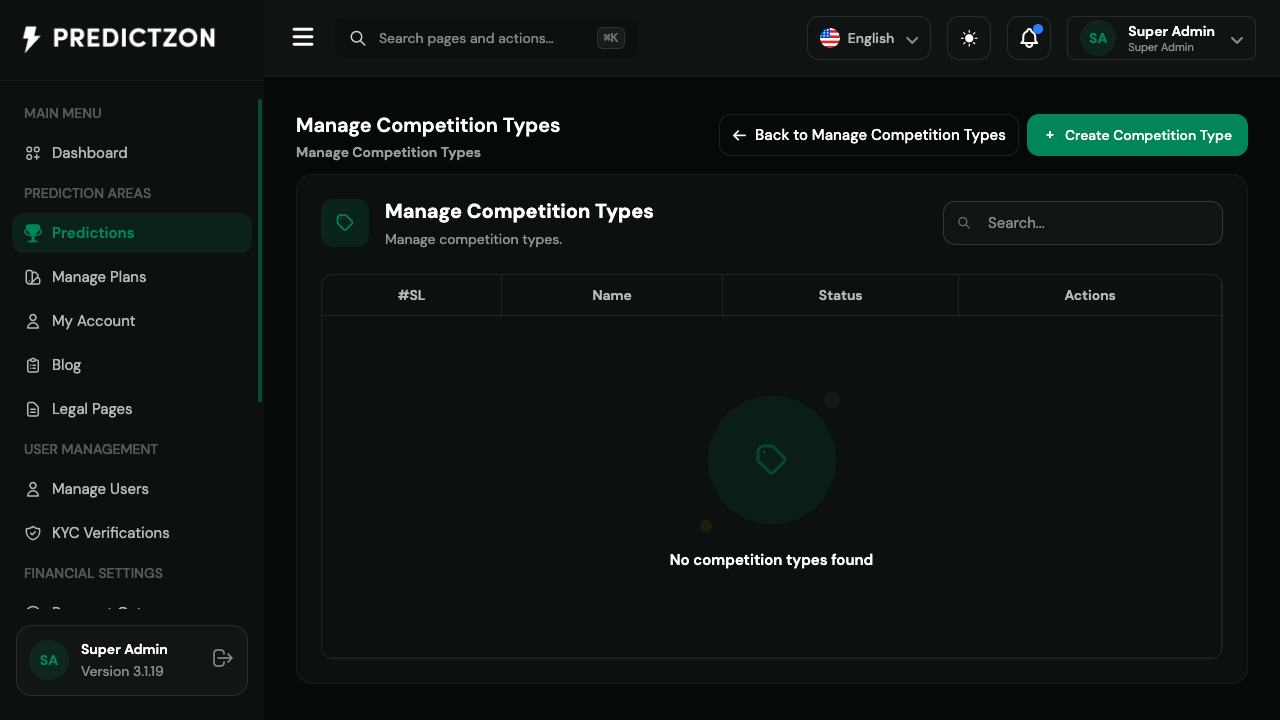
Manage Types
Types are categories used to classify competitions (e.g., League, Cup, Friendly, International).
Viewing Types
- Navigate to Predictions → Manage Types
- The table displays all competition types
Creating a Type
- Click the Create Competition Type button
- Enter the type name and status
- Save the type
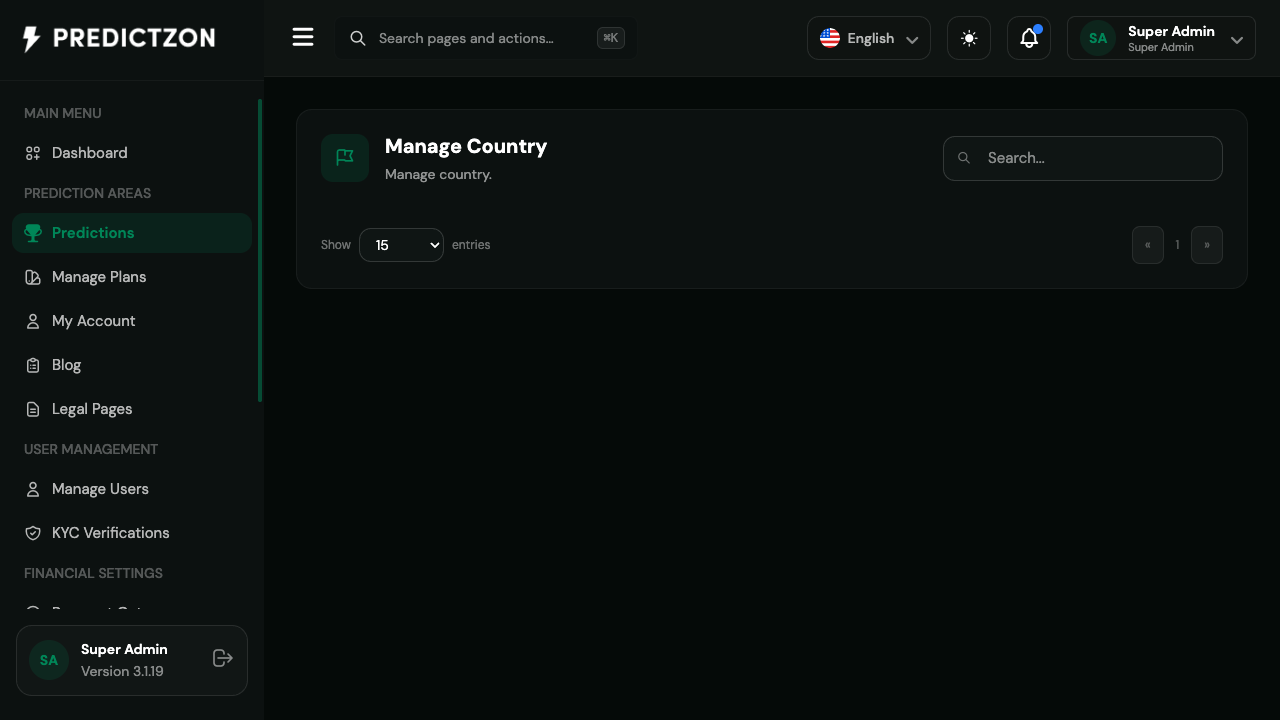
Manage Countries
Countries are used to organize teams and competitions by geographic region.
Viewing Countries
- Navigate to Predictions → Manage Countries
- The table displays all registered countries
Adding a Country
- Click the Create Country button
- Enter the country details
- Save the country
Manage Sports
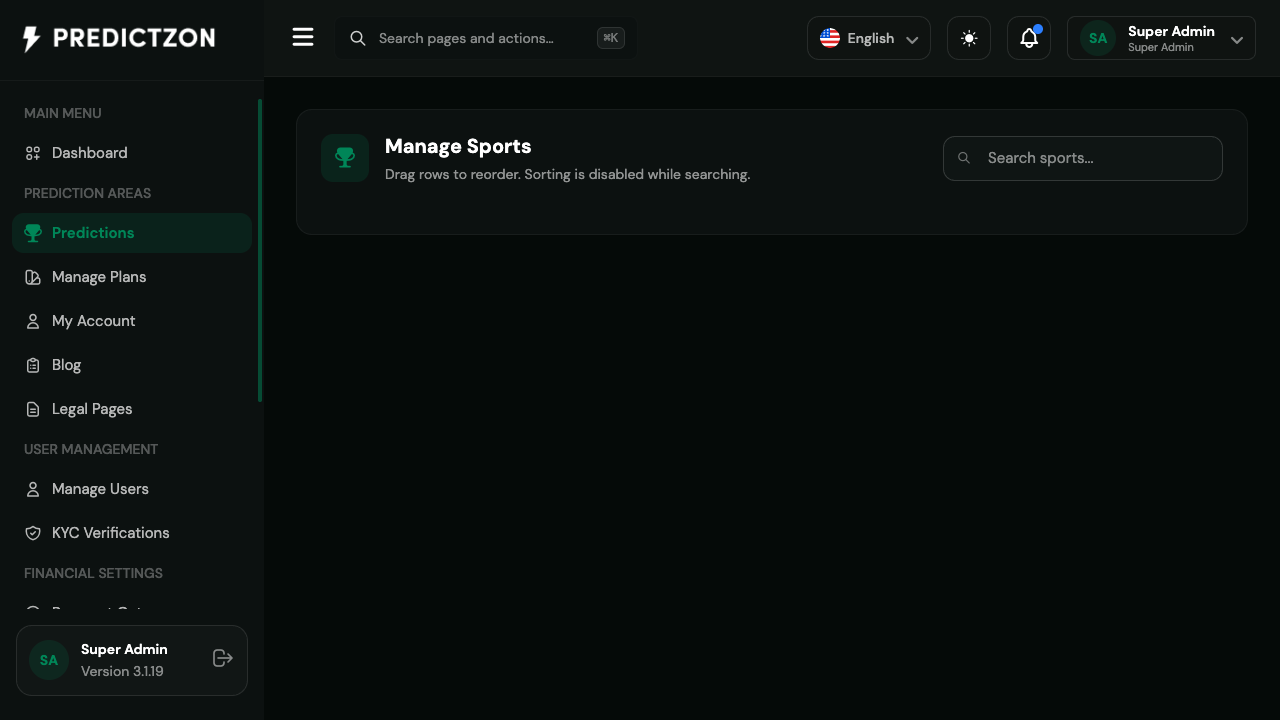
Sports define the available sport categories for predictions (Football, Cricket, Basketball, Tennis, etc.).
Viewing Sports
- Navigate to Predictions → Manage Sports
- The table displays all sports with drag-to-reorder functionality
Adding a Sport
- Click the Create Sport button
- Enter the sport name and details
- Save the sport
Reordering Sports
- Drag rows to reorder sports in the list
- Sorting is disabled while searching
Prediction Workflow
The typical workflow for managing predictions:
- Set up infrastructure — Configure sports, countries, types, and competitions first
- Add teams — Register teams associated with each sport and competition
- Create templates — Define reusable prediction formats
- Create predictions — Add individual match predictions using the templates
- Publish predictions — Change status from Draft to Published when ready
- Settle predictions — Record match outcomes after completion
Best Practices
- Keep data organized — Ensure teams are properly associated with sports and countries
- Use templates — Create templates for different prediction types to maintain consistency
- Draft first — Save predictions as Draft until you're ready to publish
- Settle promptly — Update prediction results as soon as matches conclude
- Regular updates — Keep team and competition data current
Related Pages
- Subscription Plans — Manage user subscription tiers
- Manage Users — User management and roles
- Notification Settings — Configure Telegram and other notification channels