General Settings
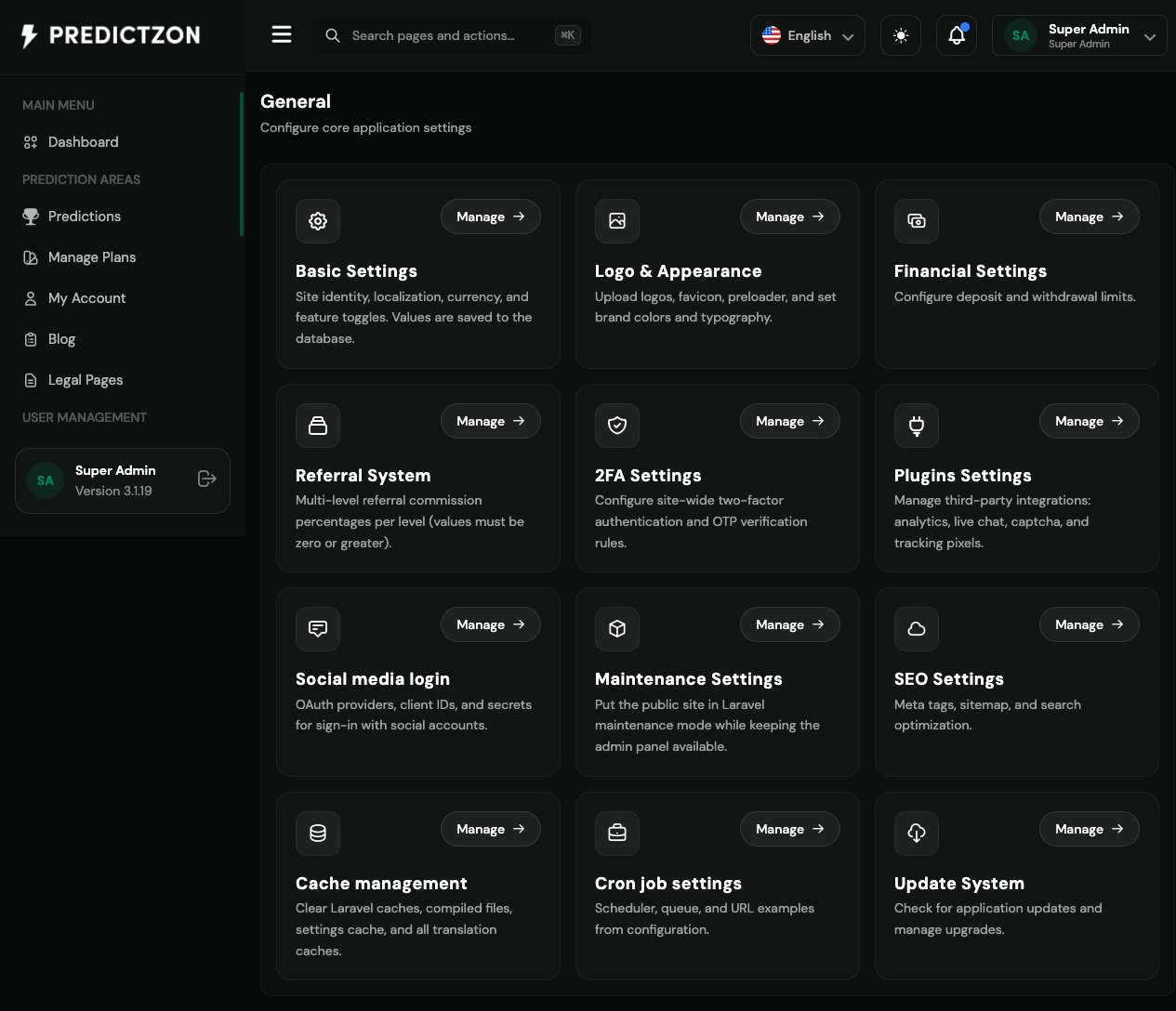
The General Settings section is your command center for configuring core platform behavior. It provides a centralized hub for site identity, security, financial rules, referral system, maintenance mode, SEO, and more.
Accessing General Settings
- Log in to the admin panel at
https://your-domain/admin - Click General Settings in the sidebar under "System Settings"
- You will land on the General Settings hub page
Settings Overview
The General Settings hub displays 12 configuration modules, each accessible via a Manage button:
| Module | Description |
|---|---|
| Basic Settings | Site identity, localization, currency, formats, and admin prefix |
| Logo & Appearance | Upload logos, favicon, preloader, and set brand colors |
| Financial Settings | Configure deposit and withdrawal limits |
| Referral System | Multi-level referral commission percentages |
| 2FA Settings | Site-wide two-factor authentication rules |
| Plugins Settings | Third-party integrations (analytics, live chat, captcha) |
| Social Media Login | OAuth providers for social sign-in |
| Maintenance Mode | Put public site in maintenance while keeping admin available |
| SEO Settings | Meta tags, sitemap, and search optimization |
| Cache Management | Clear Laravel caches and compiled files |
| Cron Job Settings | Scheduler, queue, and URL configuration |
| Update System | Check for application updates |
Basic Settings
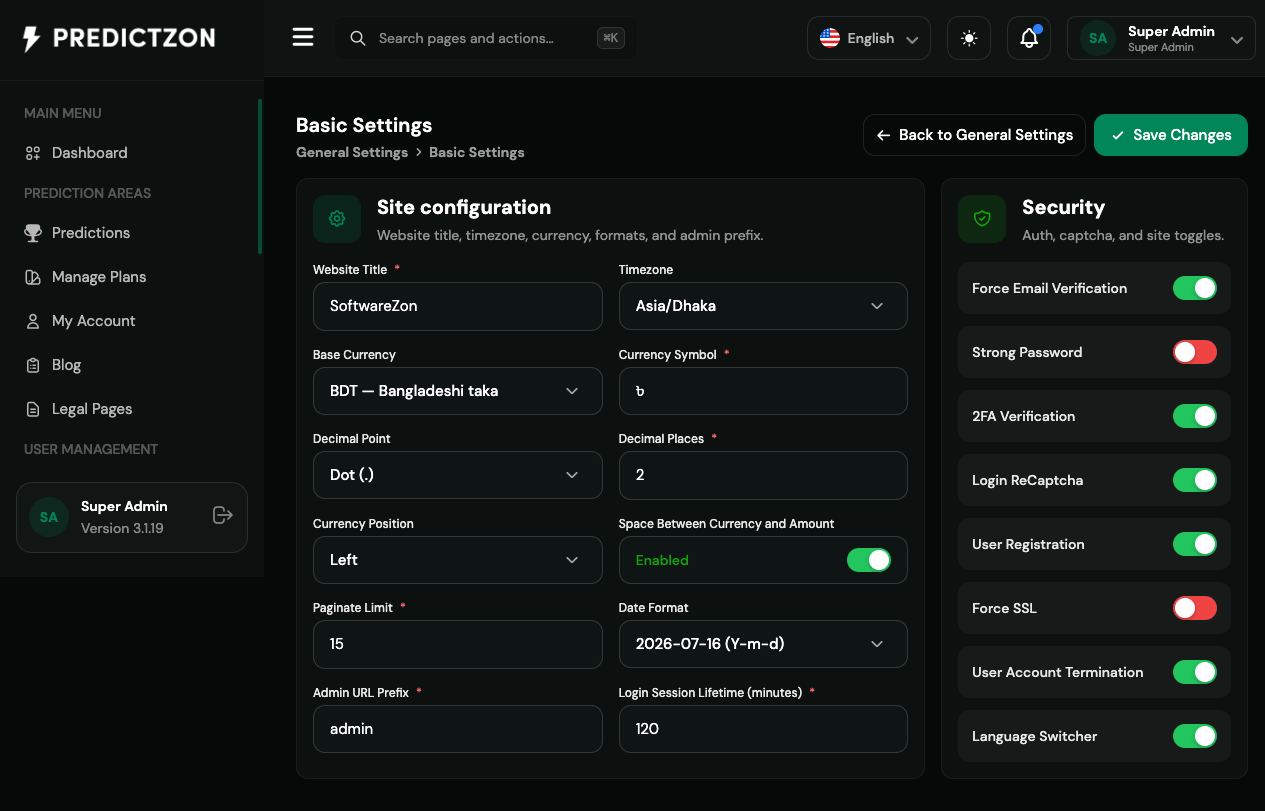
The Basic Settings page controls your site's core identity and security toggles.
Site Configuration
| Setting | Description |
|---|---|
| Website Title | Your platform's display name (e.g., "SoftwareZon CMS") |
| Timezone | Server timezone for reports and scheduling |
| Base Currency | Primary currency code (e.g., USD, BDT, EUR) |
| Currency Symbol | Auto-populated from base currency selection |
| Decimal Point | Dot (.) or comma (,) for decimal separator |
| Decimal Places | Number of decimal places for amounts (0-10) |
| Currency Position | Symbol placement: Left or Right of amount |
| Space Between Currency and Amount | Add space between symbol and amount |
| Paginate Limit | Default rows per page for tables (5-500) |
| Date Format | Display format for dates across the platform |
| Admin URL Prefix | URL path for admin panel (e.g., "admin") |
| Login Session Lifetime | Session timeout in minutes (5-10080) |
Security Toggles
| Toggle | Description |
|---|---|
| Force Email Verification | Require email verification for new registrations |
| Strong Password | Enforce complex password requirements |
| 2FA Verification | Enable two-factor authentication for all users |
| Login ReCaptcha | Show CAPTCHA on login form |
| User Registration | Allow new user sign-ups |
| Force SSL | Redirect all HTTP requests to HTTPS |
| User Account Termination | Allow users to delete their accounts |
| Language Switcher | Show language selector on frontend |
Warning: Changing the Admin URL Prefix will clear route cache and redirect you to the new URL immediately.
Logo & Appearance
Upload and manage your platform's visual identity:
- Website Logo (Dark) — Logo for dark backgrounds
- Website Logo (Light) — Logo for light backgrounds
- Favicon — Browser tab icon
- Admin Logo (Dark) — Admin panel dark mode logo
- Admin Logo (Light) — Admin panel light mode logo
- Primary Brand Color — Main accent color (hex format)
- Secondary Brand Color — Supporting accent color (hex format)
All uploaded images are stored under public/assets/images/ and versioned for cache busting.
Financial Settings
Configure deposit and withdrawal boundaries for your platform:
| Setting | Description |
|---|---|
| Deposit Enabled | Toggle deposit functionality on/off |
| Deposit Minimum | Minimum deposit amount per transaction |
| Deposit Maximum | Maximum deposit amount per transaction |
| Withdrawal Enabled | Toggle withdrawal functionality on/off |
| Withdrawal Minimum | Minimum withdrawal amount per transaction |
| Withdrawal Maximum | Maximum withdrawal amount per transaction |
Note: This section only appears if the financial module is enabled in your configuration (
backoffice.general_site_financial_enabled).
Referral System
Configure your multi-level referral commission structure:
| Setting | Description |
|---|---|
| Referral System Enabled | Toggle referral program on/off |
| Level Count | Number of referral levels (1-500) |
| Level Percentages | Commission percentage for each level |
The referral system supports deep multi-level commissions. For example, with 3 levels:
- Level 1: 10% (direct referral)
- Level 2: 5% (referral's referral)
- Level 3: 2% (third-level referral)
2FA Settings
Configure site-wide two-factor authentication policies:
| Setting | Description |
|---|---|
| 2FA Verification | Master toggle for 2FA across the platform |
| Google Authenticator | Enable TOTP-based 2FA |
| Email OTP | Enable email-based one-time passwords |
| SMS OTP | Enable SMS-based one-time passwords |
| Required for Login | Force 2FA verification at login |
| Required for Password Change | Force 2FA when changing password |
| Required for Withdrawal | Force 2FA when processing withdrawals |
Maintenance Mode
Put your public site in maintenance mode while keeping the admin panel accessible:
| Setting | Description |
|---|---|
| Maintenance Enabled | Toggle maintenance mode on/off |
| Page Title | Title shown on maintenance page |
| Page Message | Custom message for visitors |
| Secret Bypass | Secret URL path to bypass maintenance mode |
| Retry After | Auto-refresh interval in minutes (1-1440) |
When maintenance mode is activated:
- Public visitors see a branded maintenance page
- Admin panel remains fully functional
- The secret path allows authorized access (e.g.,
https://your-domain/secret-key) - If retry is set, the maintenance page auto-refreshes after the interval
SEO Settings
Configure search engine optimization for your platform:
| Setting | Description |
|---|---|
| Meta Title | Default page title for search results |
| Meta Description | Default description for search results |
| Meta Keywords | Comma-separated keywords |
| OG Title | Open Graph title for social sharing |
| OG Description | Open Graph description for social sharing |
| OG Image | Default image for social sharing |
| Robots Directive | Index/follow instructions for crawlers |
| Canonical URL | Preferred URL to prevent duplicate content |
Cache Management
Clear various Laravel caches from the admin panel:
- Application Cache — Clear framework cache
- Config Cache — Clear configuration cache
- Route Cache — Clear route cache
- View Cache — Clear compiled views
- Translation Cache — Clear translation files
Tip: Clear cache after making configuration changes to ensure they take effect immediately.
Cron Job Settings
View scheduler and queue configuration details:
- Scheduler command and cron expression
- Queue worker configuration
- URL examples for cron setup
Best Practices
- Start with Basic Settings — Configure site identity and currency first
- Enable security features — Turn on email verification and ReCaptcha
- Set financial limits — Configure deposit/withdrawal boundaries early
- Configure maintenance mode — Test maintenance mode before production
- Clear cache after changes — Always clear cache after configuration updates
- Document your settings — Keep a record of critical configuration values
Related Pages
- Theme Management — Customize platform appearance
- Notification Settings — Configure notification channels
- Manage Language — Add and manage platform languages
- Roles & Privileges — Control admin access permissions