User Panel/Deposits
Deposits
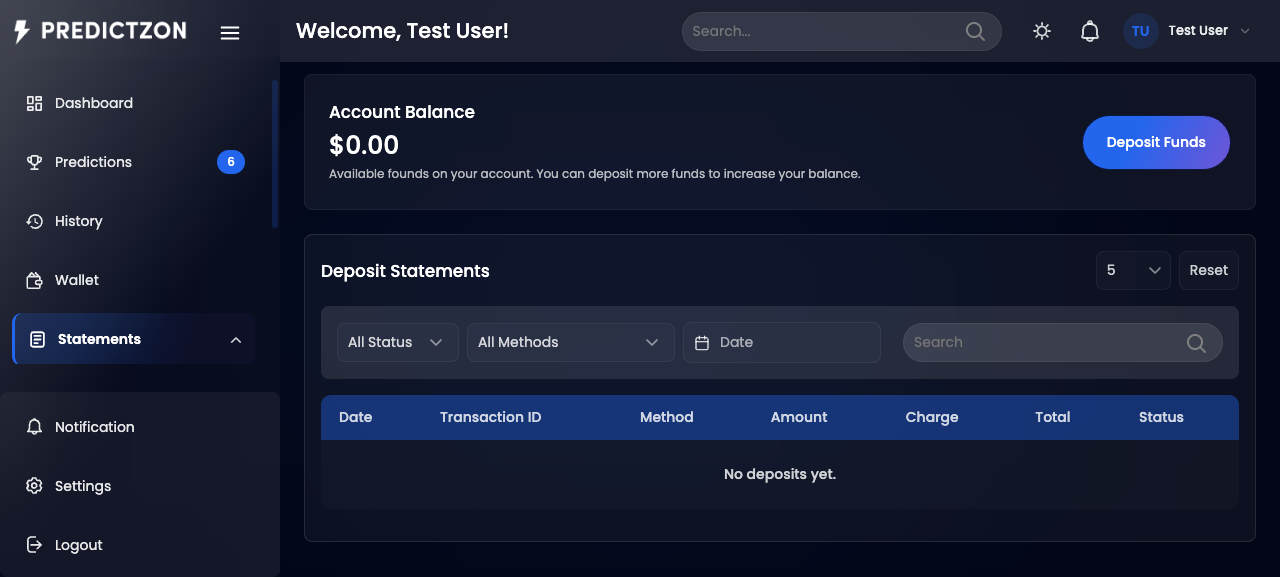
The Deposits page lets you add funds to your wallet using automated payment gateways. View your deposit history and initiate new deposits.
Accessing Deposits
- Log in to your account
- Click Statements → Deposit in the sidebar
Deposit History
The deposit history page displays all past deposits in a table:
| Column | Description |
|---|
| Transaction # | Unique transaction identifier |
| Gateway | Payment gateway used |
| Amount | Deposit amount |
| Status | Completed, Pending, or Rejected |
| Date | Deposit date |
Filtering Deposits
| Filter | Description |
|---|
| Search | Search by transaction number |
| Status | Filter by status (All, Completed, Pending, Rejected) |
| Gateway | Filter by payment gateway |
| Date Range | Filter by date range |
Making a New Deposit
- Click Deposit Funds on the dashboard, or navigate to Statements → Deposit and click New Deposit
- You will see the deposit creation form
| Field | Description |
|---|
| Amount | Enter the deposit amount (or use quick-select buttons for preset amounts) |
| Payment Gateway | Select an available automated payment gateway |
Processing Charges
When you select a gateway, the form displays:
| Field | Description |
|---|
| Processing Charge | Fee charged by the gateway (flat or percentage) |
| Total Deposit | Amount + processing charge |
Quick Amount Selection
Preset amount buttons are displayed based on the configured minimum and maximum deposit limits. Click a button to auto-fill the amount.
Submitting the Deposit
- Enter or select the deposit amount
- Choose a payment gateway
- Click Pay Now or Deposit Now
- You will be redirected to the gateway's payment page
- Complete the payment
- Your wallet is credited automatically upon approval
Deposit Statuses
| Status | Description |
|---|
| Completed | Payment confirmed and wallet credited |
| Pending | Payment initiated, awaiting confirmation |
| Rejected | Payment failed or rejected |
Tips
- Check processing charges before selecting a gateway
- Use quick-select buttons for common deposit amounts
- Keep your receipt in case of payment issues
- Contact support if your deposit is pending for more than 24 hours
Related Pages