Manage Language
The Manage Language module allows you to add, configure, and manage languages for your platform. Multi-language support helps you reach a global audience and provide localized experiences.
Accessing Manage Language
- Log in to the admin panel at
https://your-domain/admin - Click Manage Language in the sidebar under "System Settings"
- You will land on the Manage Language page
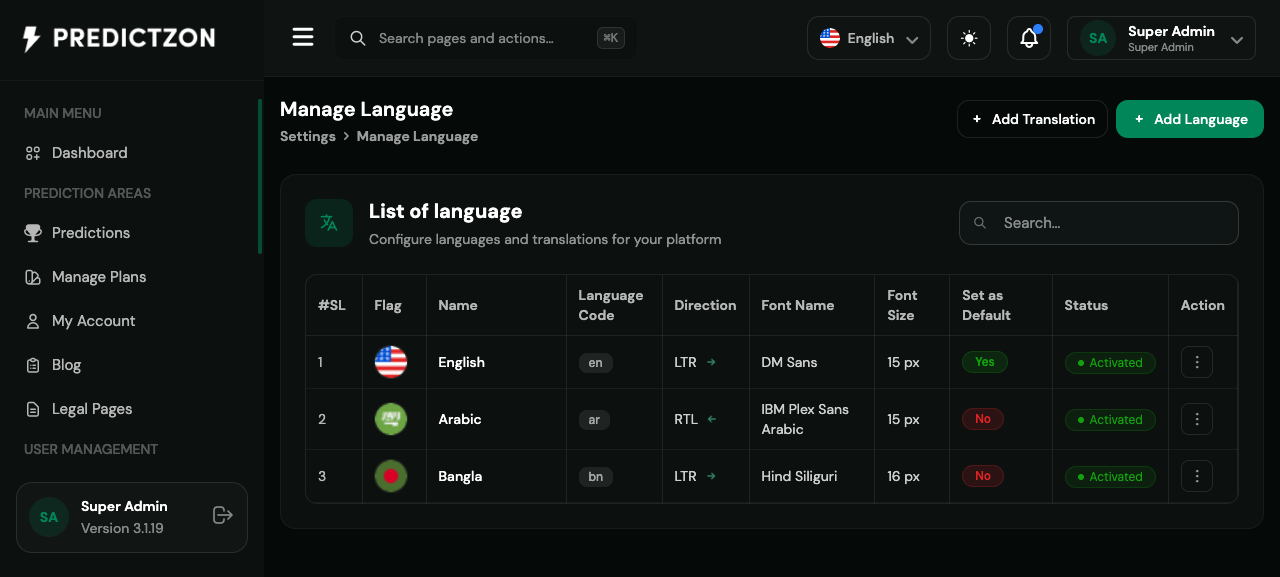
Language Management Overview
The Manage Language page displays all configured languages with the following columns:
| Column | Description |
|---|---|
| Flag | Country/language flag icon |
| Name | Language display name (e.g., "English") |
| Code | Language code (e.g., "en", "bn") |
| Default | Whether this is the default language |
| Status | Active or Inactive |
| Actions | Edit and Delete buttons |
Adding a Language
- Click the Add Language button
- Fill in the language details:
- Name — Display name (required)
- Code — ISO language code (e.g., "en", "bn", "ar")
- Flag — Country flag icon
- Is Default — Set as default language
- Is Active — Enable language for users
- Click Save to create
Editing a Language
- Click the Edit button on the language row
- Modify the details
- Click Save to update
Deleting a Language
- Click the Delete button on the language row
- Confirm the deletion
Warning: You cannot delete the default language. Change the default first if needed.
Language Configuration
Setting a Default Language
- Edit the language you want as default
- Check the Is Default checkbox
- Save the changes
The default language is used when:
- New users register
- No language preference is detected
- Translation is missing for a language
Activating/Deactivating Languages
- Active — Available for users to select
- Inactive — Hidden from language switcher
Translation Management
After adding a language, you need to add translations:
- Navigate to the Translation Management section
- Select the language to translate
- Add or edit translation keys
- Save translations
Translation Features
| Feature | Description |
|---|---|
| Manual Translation | Enter translations key by key |
| Upload Translation | Import translation file (JSON) |
| Download Translation | Export translation file |
| Auto-Translate | Use AI to translate missing keys |
Best Practices
- Start with essential languages — Add English first, then expand
- Use proper language codes — Follow ISO 639-1 standard
- Test all languages — Verify translations display correctly
- Keep translations updated — Update when adding new features
- Use auto-translate wisely — Review AI translations for accuracy
Related Pages
- General Settings — Configure language switcher visibility
- Theme Management — Translate theme content
- Notification Settings — Translate notification templates