Two-Factor Authentication
Two-Factor Authentication (2FA) adds an extra layer of security to your account. After enabling 2FA, you will need to enter a verification code in addition to your password when logging in.
Accessing 2FA Settings
- Log in to your account
- Navigate to Settings → Two-Factor Auth
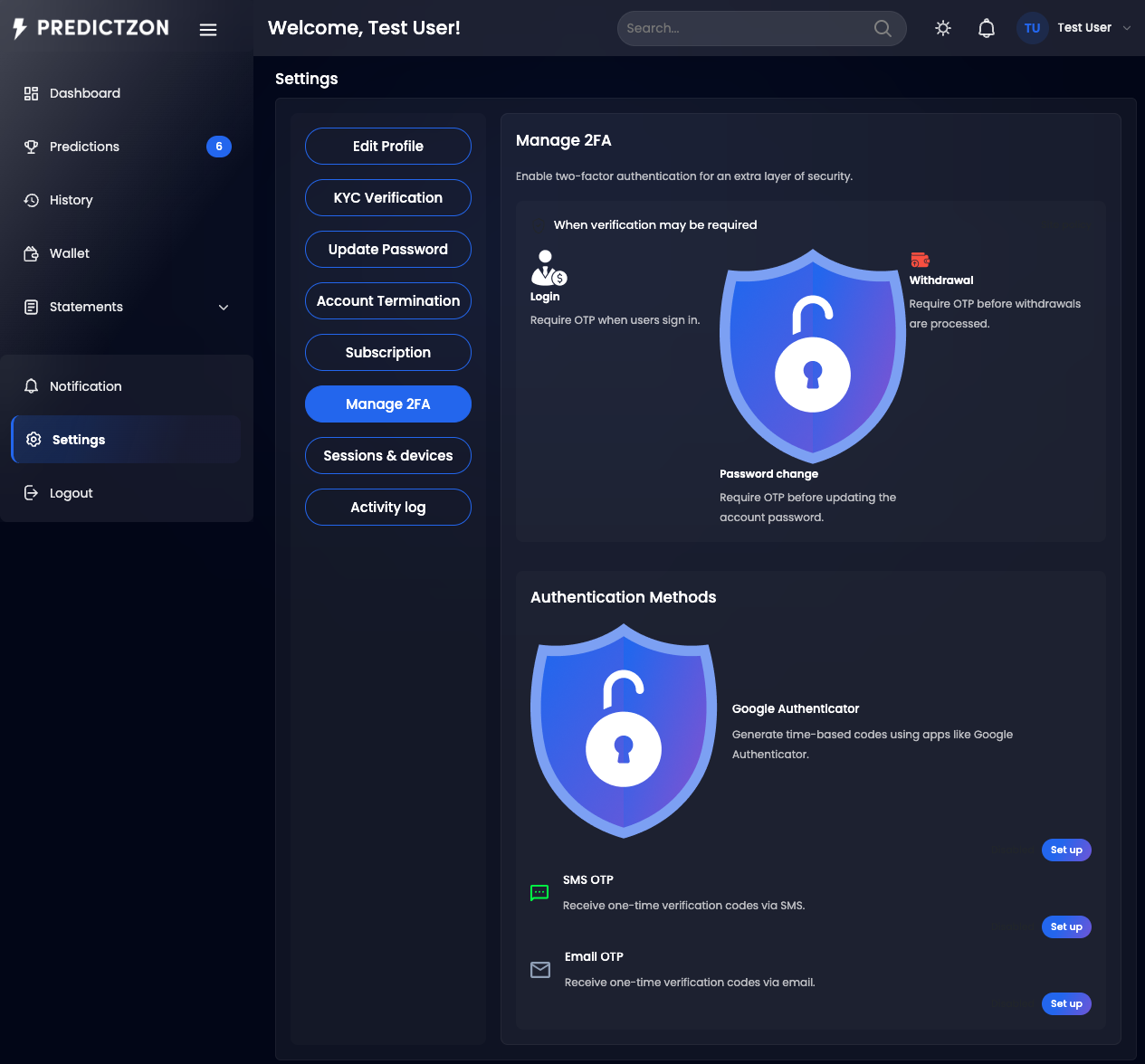
2FA Methods
The platform supports three 2FA methods:
Google Authenticator
A time-based one-time password (TOTP) generated by the Google Authenticator app.
Setup:
- Click Enable next to Google Authenticator
- Scan the QR code with your Google Authenticator app
- Enter the 6-digit code from the app
- Click Confirm
After Setup:
- Each login requires a 6-digit code from the app
- The code refreshes every 30 seconds
- Save your backup codes in a safe place
Email OTP
A one-time password sent to your registered email address.
Setup:
- Click Enable next to Email OTP
- Click Send Code to receive a verification code via email
- Enter the 6-digit code
- Click Confirm
After Setup:
- Each login triggers a code sent to your email
- Enter the code to complete login
- Codes expire after a short period
SMS OTP
A one-time password sent to your registered phone number.
Setup:
- Click Enable next to SMS OTP
- Click Send Code to receive a verification code via SMS
- Enter the 6-digit code
- Click Confirm
After Setup:
- Each login triggers a code sent via SMS
- Enter the code to complete login
- Standard SMS charges may apply
Managing 2FA Methods
| Action | Description |
|---|---|
| Enable | Turn on a 2FA method |
| Disable | Turn off a 2FA method (requires current verification code) |
| Change | Switch to a different 2FA method |
Admin Policy Requirements
If the administrator has enabled mandatory 2FA, you will see a Policy Requirements panel showing:
- Which 2FA methods are required
- Deadline for compliance
- Current compliance status
Note: You may be required to enable at least one 2FA method to continue using the platform.
Disabling 2FA
- Navigate to Settings → Two-Factor Auth
- Click Disable next to the active method
- Enter your current verification code
- Confirm the disable action
Warning: Disabling 2FA reduces your account security. Only disable if necessary.
Tips
- Use Google Authenticator — Most secure method, works offline
- Save backup codes — Store them in a password manager
- Don't share codes — Never share your 2FA codes with anyone
- Enable multiple methods — Have a backup if one method is unavailable
Related Pages
- Account Settings — Manage profile and password
- KYC Verification — Submit identity documents