Roles & Privileges
The Roles & Privileges module manages access control for your admin panel. You can create custom roles with specific permissions to control what each admin user can do.
Accessing Roles & Privileges
- Log in to the admin panel at
https://your-domain/admin - Click Role & Privileges in the sidebar under "System Settings"
- You will land on the Roles & Privileges hub page
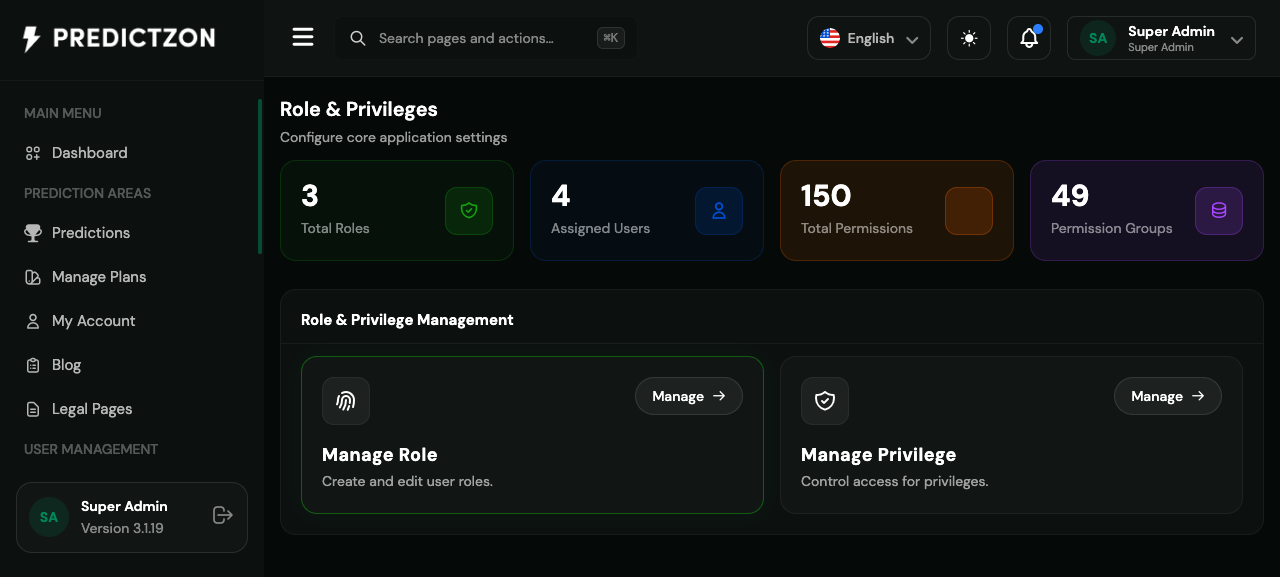
Roles & Privileges Overview
The hub page provides access to two management sections:
| Module | Description |
|---|---|
| Roles | Create and manage admin roles |
| Privileges | Define granular permissions |
Managing Roles
Navigate to Role & Privileges → Roles to manage admin roles.
Roles List
The roles table displays:
| Column | Description |
|---|---|
| Name | Role display name |
| Description | Role description |
| Users | Number of users with this role |
| Privileges | Number of assigned permissions |
| Sort | Display order |
| Actions | Edit, Reorder, and Delete buttons |
Creating a Role
- Click the Create Role button
- Fill in the role details:
- Name — Role name (required)
- Description — Role description
- Privileges — Select permissions to assign
- Click Save to create
Editing a Role
- Click the Edit button on the role row
- Modify the role details
- Update privilege assignments
- Click Save to update
Deleting a Role
- Click the Delete button on the role row
- Confirm the deletion
Warning: You cannot delete the Super Admin role. Users with this role will lose access if deleted.
Reordering Roles
Drag and drop roles to reorder them in the list. This affects how roles appear in dropdowns and selection menus.
Managing Privileges
Navigate to Role & Privileges → Privileges to manage permissions.
Privileges List
The privileges table displays:
| Column | Description |
|---|---|
| Name | Permission name |
| Group | Permission category |
| Description | Permission description |
| Actions | Edit and Delete buttons |
Creating a Privilege
- Click the Create Privilege button
- Fill in the privilege details:
- Name — Permission name (required)
- Group — Category for organization
- Description — What this permission allows
- Click Save to create
Editing a Privilege
- Click the Edit button on the privilege row
- Modify the details
- Click Save to update
Deleting a Privilege
- Click the Delete button on the privilege row
- Confirm the deletion
Note: Deleting a privilege removes it from all roles that had it assigned.
Permission Groups
Permissions are organized into logical groups:
| Group | Description |
|---|---|
| User Management | Create, edit, delete users |
| Prediction Management | Manage predictions, teams, competitions |
| Financial | Manage payments, withdrawals, gateways |
| Content | Manage blog, legal pages, comments |
| Settings | Configure system settings |
| Theme | Manage themes and appearance |
| Notifications | Configure notification channels |
Default Roles
The platform comes with default roles:
| Role | Description |
|---|---|
| Super Admin | Full access to all features |
| Admin | Limited administrative access |
| Moderator | Content moderation capabilities |
Best Practices
- Follow least privilege — Only assign necessary permissions
- Create role hierarchy — Define clear role levels
- Audit regularly — Review role assignments periodically
- Document roles — Clearly describe what each role can do
- Test permissions — Verify role access before deployment
- Avoid Super Admin duplication — Limit Super Admin count
Related Pages
- Manage Users — Assign roles to users
- General Settings — Configure security settings
- Activity Log — Monitor admin actions