Payment Gateway
The Payment Gateway module manages all payment processing for your platform, including automated payment processors, manual payment methods, and transaction logs.
Accessing Payment Gateway
- Log in to the admin panel at
https://your-domain/admin - Click Payment Gateway in the sidebar under "Financial Settings"
- You will land on the Payment Gateway hub page
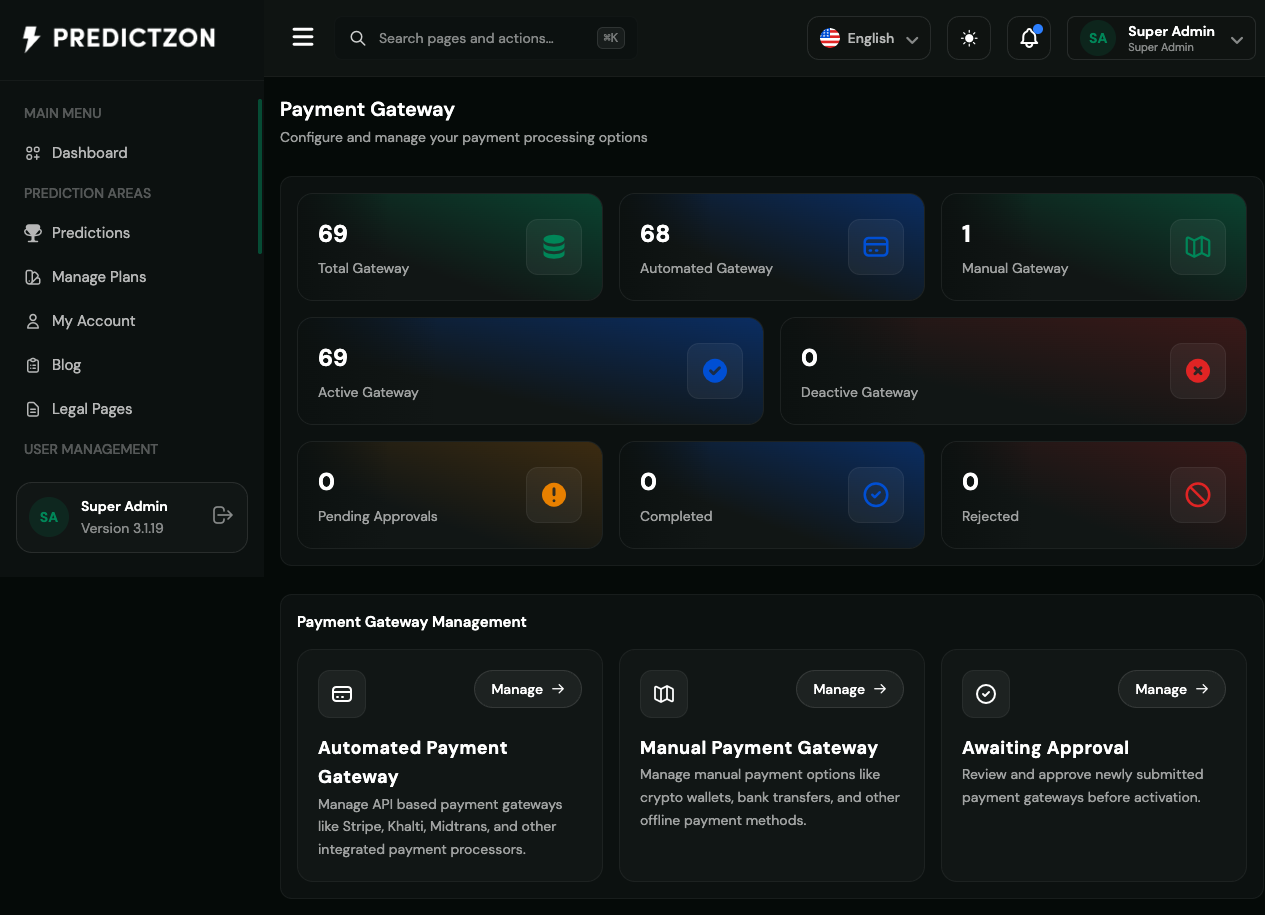
Payment Gateway Overview
The hub page displays summary statistics and management modules:
Summary Statistics
| Metric | Description |
|---|---|
| Total Gateways | All configured payment methods |
| Active | Enabled payment gateways |
| Disabled | Disabled payment gateways |
| Pending Approvals | Manual payments awaiting approval |
| Automated | Automated payment processors |
| Manual | Manual payment methods |
| Complete Logs | Successful transactions |
| Rejected Logs | Failed/rejected transactions |
Management Modules
| Module | Description |
|---|---|
| Automated Gateways | Configure automated payment processors |
| Manual Gateways | Set up manual payment methods |
| Awaiting Approval | Review pending manual payments |
| Complete Logs | View successful transactions |
| Rejected Logs | View failed transactions |
Automated Gateways
Navigate to Payment Gateway → Automated to configure payment processors.
Configuring an Automated Gateway
- Select a gateway from the list (e.g., Stripe, PayPal, Razorpay)
- Configure the gateway settings:
- API Key — Provider API credentials
- API Secret — Provider API secret
- Webhook URL — Callback URL for payment notifications
- Test Mode — Toggle between test and production
- Enabled — Toggle gateway on/off
- Minimum Amount — Minimum deposit amount
- Maximum Amount — Maximum deposit amount
- Processing Fee — Fee charged per transaction
- Click Save to update
Supported Automated Gateways
The platform supports 68+ automated payment processors, including:
- Credit/Debit Cards — Stripe, Authorize.Net, Braintree
- Digital Wallets — PayPal, Skrill, Neteller
- Bank Transfers — GoURL, bank integrations
- Regional Gateways — Country-specific payment methods
Manual Gateways
Navigate to Payment Gateway → Manual to set up manual payment methods.
Creating a Manual Gateway
- Click the Create Manual Gateway button
- Fill in the details:
- Name — Display name (e.g., "Bank Transfer")
- Instructions — Payment instructions for users
- Minimum Amount — Minimum deposit
- Maximum Amount — Maximum deposit
- Processing Fee — Fee charged
- Currency — Supported currencies
- Logo — Gateway icon/image
- Status — Active or Inactive
- Click Save to create
Editing a Manual Gateway
- Click the Edit button on the gateway row
- Modify the details
- Click Save to update
Awaiting Approval
Navigate to Payment Gateway → Awaiting Approval to review pending manual payments.
Reviewing a Payment
- Click on a pending payment
- Review the details:
- User information
- Amount and currency
- Payment proof (screenshot/receipt)
- Submission timestamp
- Make a decision:
Approving a Payment
- Click Approve
- Confirm the approval
- User's wallet is credited
- User receives confirmation notification
Rejecting a Payment
- Click Reject
- Enter rejection reason
- Confirm the rejection
- User receives rejection notification
Transaction Logs
Complete Logs
View all successful transactions:
- Transaction ID
- User information
- Amount and currency
- Gateway used
- Timestamp
Rejected Logs
View all failed or rejected transactions:
- Transaction ID
- User information
- Rejection reason
- Timestamp
Payment Workflow
The typical payment workflow:
- User initiates deposit — Selects payment method
- Payment processed — Automated gateway processes or user submits proof
- Confirmation — Gateway sends webhook or admin reviews manual payment
- Wallet credited — User's balance is updated
- Notification sent — User receives confirmation
- Transaction logged — Record added to payment logs
Best Practices
- Enable multiple gateways — Offer variety to users
- Test thoroughly — Use test mode before going live
- Monitor pending payments — Review manual payments daily
- Set appropriate limits — Configure min/max amounts carefully
- Keep API keys secure — Never expose credentials
- Review transaction logs — Monitor for suspicious activity
Related Pages
- Withdrawal Gateway — Manage withdrawal processing
- Financial Settings — Configure deposit/withdrawal limits
- Manage Users — View user payment history